g11 BDiskDigger can undelete and recover lost photos, images, videos, documents, or other types of non-media files from your internal memory or external memory card. Whether you accidentally deleted a photo, or even reformatted your memory card, DiskDigger’s powerful data recovery features can find your lost pictures, videos, or other data, and let you restore them.
You can upload your recovered files directly to Google Drive, Dropbox, or send them via email. The app also allows you to save the files to a different local folder on your device.
Note: DiskDigger requires the “Access all files” permission on your device, to be able to search all locations on the device for lost and recoverable files. When you are asked for this permission, please enable it so that DiskDigger can search your device most effectively.
* If your device is not rooted, the app will perform a “limited” search for your lost files by performing a full search of your existing internal storage, thumbnail caches, databases, and more.
* If your device is rooted, the app will search all of your device’s memory for any trace of photos, videos, and certain other types of files.
* After the scan is complete, tap the “Clean up” button to permanently delete any items that you no longer need (currently an experimental feature, available only in the Basic Scan).
* You can also use the “Wipe free space” option to erase the remaining free space on your device, so that any deleted files can no longer be recoverable.
For complete instructions, please see
If you need to recover even more types of files, or for recovering the files directly over SFTP and other methods, try DiskDigger Pro!
cc1 JusCall – Your FREE, SECURE, and RELIABLE International Calling Solution Experience crystal-clear audio quality for completely free local and international calls. Download this advanced VoIP app and make your first FREE call today!
WHY CHOOSE JUSCALL: Global Free Calling Make unlimited free calls to mobile/landline numbers across 230+ countries and regions. Stay connected while traveling – call any device (tablets, computers, etc.) worldwide without requiring recipients to install other APP or have internet access.
No SIM Card Needed No SIM card or phone number required! Enjoy unlimited worldwide calling through WiFi or cellular data (3G/4G/5G). Perfect for international travelers and digital nomads.
Premium Audio Quality Our dedicated VoIP network delivers HD voice clarity through advanced audio compression technology. Free calls are no longer of low quality! With JusCall, you can make calls even in the case of poor cellular phone reception.
100% Cost-Free Service Unbeatable pay-as-you-go rates and no hidden fees. JusCall operates independently of your cellular plan minutes, offering truly free global calling.
Enhanced Conference Calling Host professional 8-way conference calls with HD audio and live video support. Ideal for remote teams, international business meetings, and virtual family gatherings.
Smart Call Recording Instantly capture important conversations with one-tap recording during the calls. Securely store and manage recordings directly within the app.
Universal Compatibility Call any phone number worldwide – recipients don’t need the JusCall app. Simply dial directly from your device using our internet-based calling system (WiFi/VoIP/IP calls). *JusCall utilizes Internet call (Wi-Fi call, IP call, or VoIP call), which requires a data connection. *Unlike international calling cards, JusCall does not use your cell minutes. *Data charges may apply. Check with your carrier for details.
Important Notes: • Service requires internet connection (WiFi/cellular data) • Does not consume cellular plan minutes • Carriers may apply data charges
Love using JusCall? Help us improve by rating (⭐⭐⭐⭐⭐) on Google Play! Share the app with friends and family to enjoy free global connectivity together.
Thank you for choosing JusCall – Where the World Connects Freely! We continuously optimize JusCall to enhance your experience.
Netflix pro Looking for the most talked about TV shows and movies from around the world? They’re all on Netflix.
Discover award-winning series, movies, live events, podcasts, and games on the go – all in the mobile app. Now, you’ll never miss a moment from the world of Netflix while you travel, commute, or just take a break.
What you’ll love about Netflix:
– Smooth navigation with bottom shortcuts to quickly browse or jump back into your favorites.
– A new way to discover what’s next, including an upcoming clips feed.
– A full world of entertainment in one place – series, movies, live events, games, and podcasts.
– Keep track of everything you love, from your favorite moments to ‘My List’, in the ‘My Netflix’ tab.
– Personalized recommendations based on your ratings. Instant notifications for new releases, episodes, and live events.
Netflix membership is a month-to-month subscription that begins at sign-up. You can easily cancel anytime, online, 24 hours a day. There are no long-term contracts or cancellation fees. We just want you to love what you watch.
Please note that the App Privacy information applies to information collected through the Netflix iOS, iPadOS, and tvOS apps. See the Netflix Privacy Statement (link below) to learn more about information we collect in other contexts, including account registration.
Please note that the App Privacy information applies to information collected through the Netflix iOS, iPadOS, and tvOS apps. See the Netflix Privacy Statement (link below) to learn more about information we collect in other contexts, including account registration.
045 🧠 Introduction: The Dual Challenge of Modern Leadership
045 Tech leaders in finance face a unique balancing act: driving innovation while maintaining operational efficiency. The digital era demands constant experimentation with new tools and strategies, but unchecked innovation can lead to wasted resources. The key is finding harmony—leveraging online productivity tips to foster creativity without sacrificing financial discipline.
Leverage Cloud Collaboration Tools: Platforms like Microsoft Teams, Slack, and Google Workspace keep teams aligned across geographies.
Automate Routine Tasks: Use AI-driven tools for reporting, invoicing, and compliance checks to free time for strategic work.
Adopt Agile Project Management: Tools like Trello, Asana, or Jira help teams innovate quickly while tracking efficiency.
Use Data Dashboards: Real-time analytics platforms (Power BI, Tableau) provide visibility into both innovation projects and financial performance.
Encourage Knowledge Sharing: Online forums, internal wikis, and digital workshops prevent duplication of effort and accelerate learning.
Set Clear Digital Boundaries: Productivity apps like RescueTime or Focus@Will help leaders avoid burnout by managing online distractions.
⚖️ Balancing Innovation and Efficiency in Practice
Pilot Before Scaling: Test new technologies in small teams before rolling them out company-wide.
Measure ROI: Track the financial impact of innovation projects to ensure they justify investment.
Hybrid Approach: Blend traditional financial discipline with digital experimentation.
Continuous Feedback Loops: Use online surveys and performance metrics to refine strategies in real time.
🌍 Case Studies of Success
Goldman Sachs: Leveraged AI-driven risk models while streamlining operations with cloud-based systems.
Stripe: Innovated in online payments while maintaining lean, efficient infrastructure.
Small Fintech Firms: Many startups scale globally by combining agile innovation with disciplined financial management.
🚀 The Road Ahead
The future of finance leadership lies in adaptive balance. Tech leaders who embrace online productivity tools will be able to innovate boldly while keeping efficiency at the core. As AI and blockchain mature, the ability to integrate these technologies seamlessly into financial operations will define the next generation of successful leaders.
✅ In summary: Tech leaders in finance must balance innovation and efficiency to thrive. By applying online productivity tips—automation, collaboration, agile management, and data-driven insights—they can drive growth while safeguarding financial sustainability.
The days of carrying around a pocket full of easily losable USB flash drives are long over. Today, whether you are managing an online business, backing up precious family photos, or trying to figure out how to share massive 4K video files with a freelance video editor, the answer is always the same: The Cloud.
“The cloud” is simply a network of massive, highly secure servers owned by tech companies that you rent a tiny slice of. It acts as a hard drive in the sky, allowing you to access your files from your laptop, your phone, or a library computer halfway across the world.
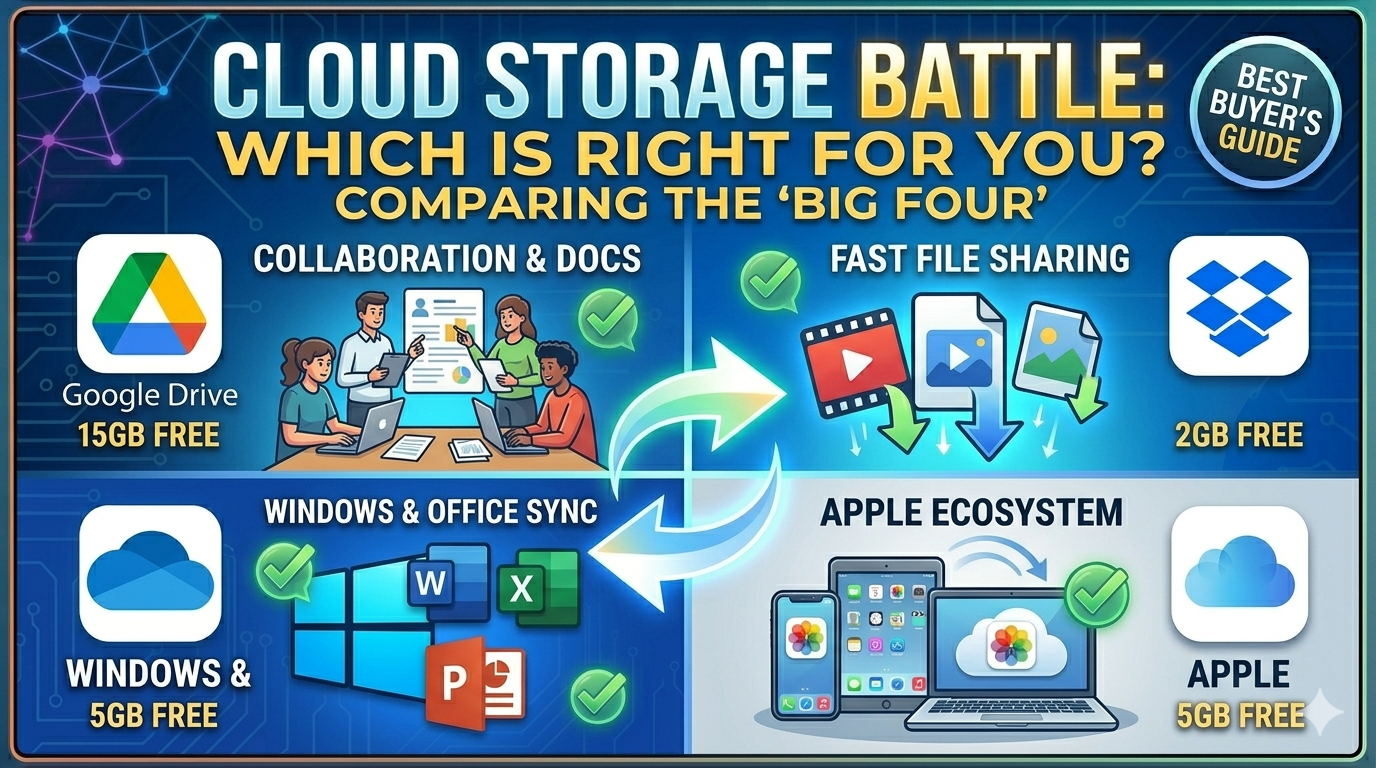
However, not all cloud storage providers are created equal. The “Big Four”—Google, Apple, Microsoft, and Dropbox—each have distinct strengths, weaknesses, and pricing models. In this guide, we will break down the features of each ecosystem so you can choose the best home for your digital life.
1. Google Drive: The Collaboration King
If your daily routine involves creating content, planning projects with a team, or juggling multiple online businesses, Google Drive is likely the default choice.
Drive is deeply integrated with Google Workspace (Google Docs, Sheets, and Slides). Because multiple people can edit the same document simultaneously, it is the undisputed champion of real-time collaboration.
Best For: Digital marketing teams, drafting video scripts, sharing folders of promotional assets, and anyone who relies on Gmail.
The Free Tier: A generous 15GB (Note: This is shared across your Google Drive, Gmail, and Google Photos).
Ecosystem: Works flawlessly on every device—Windows, Mac, iOS, and Android. It lives entirely in your web browser, making it incredibly lightweight.
The Catch: Because your 15GB is shared with your email and photos, you might hit the storage limit faster than you expect.
2. Dropbox: The File-Sharing Veteran
Dropbox practically invented the modern consumer cloud storage industry. While the tech giants have caught up, Dropbox still excels at its core mission: moving large files quickly and reliably.
Dropbox uses a technology called “block-level sync.” If you make a tiny edit to a massive 10GB video file, Dropbox only uploads the small piece of data that changed, rather than re-uploading the entire 10GB file.
Best For: Content creators sharing massive raw video files with a remote video editor, or professionals who need bulletproof, fast file syncing.
The Free Tier: A very restrictive 2GB.
Ecosystem: Incredibly platform-agnostic. It works beautifully on Mac, Windows, Linux, and mobile.
The Catch: The free tier is practically useless for anything other than basic text documents. You have to pay to get real value out of Dropbox.
3. Microsoft OneDrive: The Windows Office Standard
If you use a Windows PC, you already have OneDrive. It is baked directly into the operating system’s File Explorer.
OneDrive shines if you are heavily invested in the Microsoft Office suite. If you use Microsoft Excel to track your personal budgeting, monitor ad payouts, or manage business accounting, saving those files to OneDrive allows you to utilize Microsoft’s powerful “AutoSave” feature, ensuring you never lose a single keystroke.
Best For: Windows 10/11 users, financial planners, and students or professionals who live in Word and Excel.
The Free Tier:5GB.
Ecosystem: Dominant on Windows. There is a Mac app, but it is not as seamless as it is on a PC.
The Catch: The synchronization can sometimes feel clunky if you are trying to force it to work entirely outside the Microsoft ecosystem.
4. Apple iCloud: The Apple Ecosystem Anchor
Apple iCloud is less of a traditional “drag-and-drop” folder and more of a silent, invisible backup system that lives entirely in the background of your Apple devices.
If you shoot all your social media content for TikTok and Instagram on an iPhone, iCloud automatically syncs those high-resolution videos to your iPad and Mac without you ever having to press a button.
Best For: Users who exclusively own Apple products (iPhone, Mac, iPad) and want a completely hands-off backup experience.
The Free Tier:5GB.
Ecosystem: Phenomenal if you are inside the “walled garden” of Apple.
The Catch: Terrible if you are not. Using iCloud on a Windows PC or an Android phone is a notoriously frustrating experience.
The Feature & Pricing Comparison
Note: Pricing is based on standard consumer tiers as of the current market and is subject to slight regional variations.
Provider
Free Storage
100GB – 200GB Tier
1TB – 2TB Tier
Standout Feature
Google Drive (Google One)
15 GB
~$1.99 – $2.99 / mo
~$9.99 / mo (2TB)
Unmatched live document collaboration.
Apple iCloud+
5 GB
~$0.99 – $2.99 / mo
~$9.99 / mo (2TB)
Seamless background sync for iOS/Mac.
Microsoft OneDrive
5 GB
~$1.99 / mo (100GB)
~$6.99 / mo (1TB)*
*1TB tier includes full MS Office 365 apps.
Dropbox
2 GB
N/A
~$11.99 / mo (2TB)
Fastest syncing for massive media files.
A Crucial Note on Privacy and Security
While all four of these providers use robust encryption to protect your data from outside hackers, they still hold the “keys” to your files. This means that, legally, their automated systems scan your files for illegal content, and they can be forced to hand over your data to law enforcement.
If privacy is your absolute number one priority (e.g., storing highly sensitive legal or medical documents), you should look into Zero-Knowledge Cloud Providers like Proton Drive or Sync.com. These services encrypt your data locally before it ever leaves your computer, meaning the company itself physically cannot see what is inside your folders.
The Bottom Line
Choosing the right cloud storage isn’t about finding the “best” service overall; it is about finding the one that perfectly fits the tools you already use.
If you live in spreadsheets and Windows, go with OneDrive. If you run your business communications and drafting out of a web browser, choose Google Drive. If you are juggling massive video files with a remote team, pay for Dropbox. And if your entire life is on an iPhone, upgrade your iCloud.
Think about how many online accounts you currently have. Between social media, banking, streaming services, online shopping, and work tools, the average person is juggling well over 100 different logins.
If you are relying on human memory to keep track of them all, you are likely committing the cardinal sin of cybersecurity: password reuse. Using the same variation of “Name123!” across multiple websites is like using the exact same physical key for your house, your car, your office, and your safety deposit box. If a hacker gets the key to one, they have the keys to everything.
The solution to this modern dilemma isn’t trying to memorize a hundred complex strings of gibberish. It is using a password manager. In this guide, we will break down exactly how these tools work, why your browser’s built-in saver isn’t enough, and how to choose the best vault for your digital life.
What is a Password Manager?
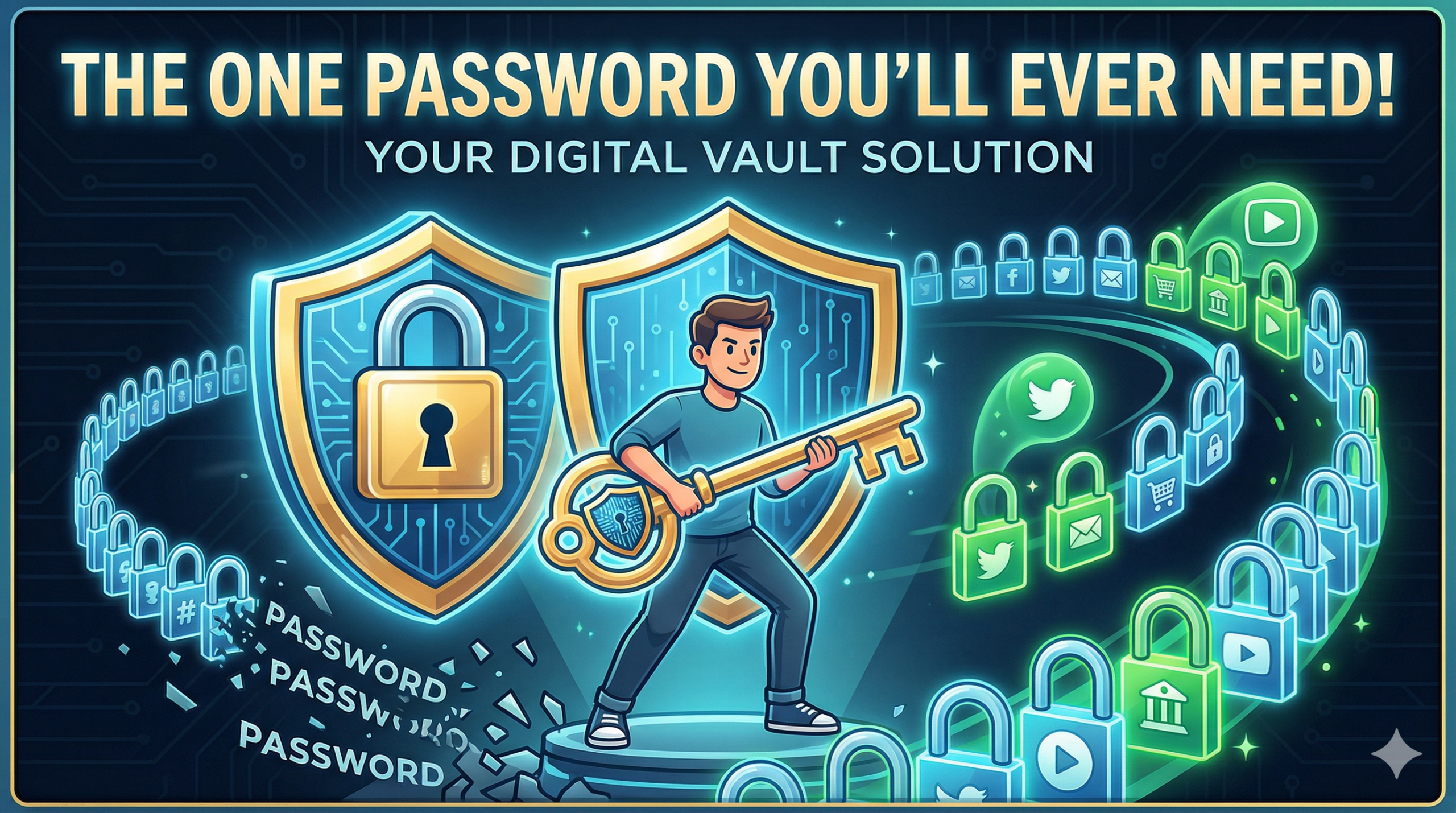
At its core, a password manager is an encrypted digital vault that stores the login credentials for all your apps and websites.
Instead of remembering dozens of passwords, you only need to memorize one highly secure “Master Password.” When you visit a website or open an app, the password manager unlocks your vault and automatically fills in your username and a uniquely generated, virtually uncrackable password.
The Magic of Zero-Knowledge Encryption
The most common hesitation people have is: “Isn’t it dangerous to put all my passwords in one basket?” It would be, if the company hosting your vault could see what was inside. However, reputable password managers use Zero-Knowledge Encryption. This means your data is encrypted and decrypted locally on your device—not on the company’s servers. The company simply holds the locked box; only you hold the key (your Master Password). Even if the password manager’s servers are hacked, the attackers only get scrambled, unreadable data.
Why Your Browser’s Built-In Saver Falls Short
You might be thinking, “But Google Chrome and Apple Safari already save my passwords for free!” While browser-based password managers are incredibly convenient and infinitely better than using sticky notes, they come with significant limitations:
You Are Locked into an Ecosystem: Chrome’s manager works perfectly in Chrome, but struggles if you switch to a Firefox browser or try to log into an app on your smartphone that isn’t connected to your Google account. A dedicated password manager works across every browser and operating system (Windows, Mac, iOS, Android).
Security Vulnerabilities: Browsers often leave your passwords more exposed if someone gains physical access to your unlocked computer. Dedicated apps require a biometric check (like FaceID or fingerprint) or your Master Password before they auto-fill credentials.
Lack of Secure Sharing: If you need to share a Wi-Fi password or a shared streaming login with a family member, browser managers don’t offer a secure way to do it. Dedicated managers allow encrypted sharing without ever revealing the actual text of the password.
What to Look for When Choosing a Password Manager
If you are ready to make the switch, you will find a crowded market of options. Here are the crucial features you should evaluate before committing to a service:
1. Independent Security Audits
Never trust a cybersecurity company that says “just trust us.” Look for password managers that regularly undergo third-party security audits and publish the results. Open-source code (where independent security experts can inspect the software for flaws) is an even bigger bonus.
2. Multi-Platform Synchronization
A password manager is useless if it doesn’t have your passwords when you need them. Ensure the service you choose has dedicated apps for your specific smartphone (iOS/Android) and browser extensions for your preferred web browser. It should sync instantly across all of them.
3. Built-In Authenticator (2FA)
The best password managers do more than just store passwords; they can also store and generate your Two-Factor Authentication (2FA) codes. Having your passwords and your rotating 6-digit codes automatically fill in saves a tremendous amount of time.
4. Dark Web Monitoring
Many premium managers offer breach monitoring. If a website you use gets hacked and your email and password end up on the dark web, the password manager will immediately alert you so you can change the compromised password before any damage is done.
Top Trusted Options for [Current Year]
While the “best” option depends on your specific needs and budget, these three consistently rank at the top of the industry:
Bitwarden: The reigning champion for budget-conscious users. Bitwarden is open-source, highly secure, and offers a remarkably robust free tier that covers unlimited passwords across unlimited devices.
1Password: The gold standard for families and businesses. It offers an incredibly slick, intuitive user interface, excellent secure-sharing features, and top-tier customer support. (No free tier, but excellent value).
Dashlane: A premium option that bundles in extra security features, including a built-in VPN and highly effective dark web monitoring.
The Bottom Line
Making the transition to a password manager takes about an hour of initial setup, but it fundamentally upgrades your online security forever. You will never have to click “Forgot Password” again, you will be immune to credential-stuffing attacks, and logging into your accounts will be faster than ever.
Start by downloading one of the reputable apps, generate your strong Master Password, and begin migrating your accounts one by one. Your digital life will thank you.
We have all experienced that sinking feeling. You go to open a crucial work document, a folder of irreplaceable family photos, or a massive project file, and it’s simply… gone. Whether it’s due to a spilled cup of coffee, a sudden hard drive failure, or a malicious ransomware attack, data loss is a matter of when, not if.
Relying on a single copy of your data is like walking a tightrope without a net. Fortunately, the tech industry has a golden standard for data protection that everyday users can easily adopt. It’s called the 3-2-1 Backup Rule.
In this guide, we will break down exactly what the 3-2-1 rule is, why it works so flawlessly, and how you can set it up today without needing an IT degree.
What is the 3-2-1 Backup Rule?
Coined by photographer Peter Krogh in the early 2000s, the 3-2-1 rule is a straightforward, common-sense approach to data retention. It guarantees that no single disaster, hardware failure, or human error can wipe out your important files.
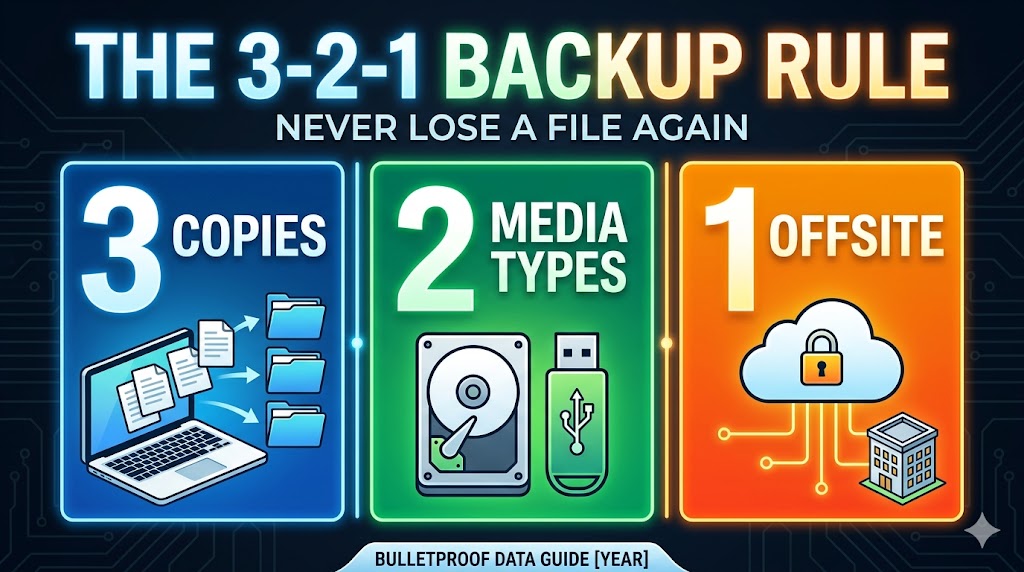
The rule states that you should keep:
3 total copies of your data.
2 of those copies on different types of media.
1 of those copies located offsite.
Let’s break down exactly why each of these pillars is essential to keeping your digital life secure.
1. Maintain Three Total Copies
Having one original file and one backup isn’t enough. If your computer crashes and your only backup drive gets corrupted at the exact same time (which happens more often than you think), you are out of luck.
By maintaining three copies (your primary working copy plus two backups), you mathematically reduce the probability of losing all three simultaneously to near zero.
2. Use Two Different Types of Media
Hardware fails. If you keep your original data on a solid-state drive (SSD) and both of your backups on the exact same brand and model of SSD, a widespread manufacturer defect could potentially wipe out all your copies.
Diversifying your storage media mitigates this risk. Different types of media include:
The internal drive on your computer.
An external Hard Disk Drive (HDD) or Solid State Drive (SSD).
A USB flash drive.
Network Attached Storage (NAS).
Optical media (like DVDs or Blu-rays, though these are less common today).
3. Keep One Copy Offsite
If your house or office suffers a fire, flood, or burglary, all the local backups in the world won’t help you if they are sitting on the desk next to your stolen or destroyed laptop.
An offsite backup ensures your data survives local, physical disasters. Historically, this meant taking a physical hard drive to a different physical location (like a safety deposit box or a friend’s house). Today, the cloud makes this step incredibly simple.
How to Implement the 3-2-1 Rule Today
You don’t need expensive enterprise software to set this up. Here is a practical, step-by-step blueprint for everyday users.
Step 1: Identify Your Critical Data
Not everything needs to be backed up. Operating systems and applications can be reinstalled. Focus on what you cannot easily replace:
Personal photos and videos.
Financial documents and tax records.
Ongoing work projects and client files.
Password manager databases.
Step 2: Set Up Local Backup #1 (The Quick Recovery)
Your first backup should be local. This allows for rapid recovery if you accidentally delete a file or your laptop’s internal drive dies.
Mac Users: Purchase an external drive and use Apple’s built-in Time Machine. It automatically runs quietly in the background, saving hourly backups.
Windows Users: Use Windows File History or a third-party tool like Macrium Reflect paired with a reliable external HDD or SSD.
Step 3: Set Up Offsite Backup #2 (The Disaster Recovery)
Your second backup must live outside your home or office. Cloud backup services are the easiest and most secure way to handle this.
Cloud Storage vs. Cloud Backup: It is vital to know the difference. Services like Google Drive, Dropbox, and OneDrive are syncing services. If you delete a file on your computer, it deletes it in the cloud. Dedicated cloud backup services like Backblaze, IDrive, or Carbonite are designed to mirror your entire hard drive to secure servers and protect against accidental deletions.
Pro Tip: Look for an offsite cloud backup service that offers “versioning.” This means if a file gets infected with a virus today, you can roll back and restore the clean version of the file from yesterday.
Step 4: Automate Everything
The number one reason people lose data is that they forget to run their manual backups. Your 3-2-1 system should require zero daily effort on your part. Set your local backup software to run daily or continuously, and ensure your cloud backup is configured to automatically upload changes whenever you are connected to Wi-Fi.
Common Backup Mistakes to Avoid
Even with the 3-2-1 rule in mind, there are a few traps to watch out for:
Treating “Syncing” as a Backup: As mentioned above, simply dragging a file into an iCloud or Dropbox folder does not fully protect it from ransomware or accidental permanent deletion.
Never Testing Your Backups: A backup is only as good as its restore process. Once every few months, try to recover a specific file from both your local external drive and your cloud service to ensure the data is actually there and uncorrupted.
Leaving External Drives Plugged In 24/7: If you get hit by ransomware, it can jump from your computer to any connected external drives, locking up your backups too. If you use an external drive, consider unplugging it when it isn’t actively backing up.
The Bottom Line
Your digital footprint is incredibly valuable. Implementing the 3-2-1 Backup Rule might take an hour of your weekend to set up, but it provides a lifetime of peace of mind. By keeping three copies of your data, across two different media types, with one stored safely offsite, you are building an impenetrable fortress around your most important files.