We have all experienced that sinking feeling. You go to open a crucial work document, a folder of irreplaceable family photos, or a massive project file, and it’s simply… gone. Whether it’s due to a spilled cup of coffee, a sudden hard drive failure, or a malicious ransomware attack, data loss is a matter of when, not if.
Relying on a single copy of your data is like walking a tightrope without a net. Fortunately, the tech industry has a golden standard for data protection that everyday users can easily adopt. It’s called the 3-2-1 Backup Rule.
In this guide, we will break down exactly what the 3-2-1 rule is, why it works so flawlessly, and how you can set it up today without needing an IT degree.
What is the 3-2-1 Backup Rule?
Coined by photographer Peter Krogh in the early 2000s, the 3-2-1 rule is a straightforward, common-sense approach to data retention. It guarantees that no single disaster, hardware failure, or human error can wipe out your important files.
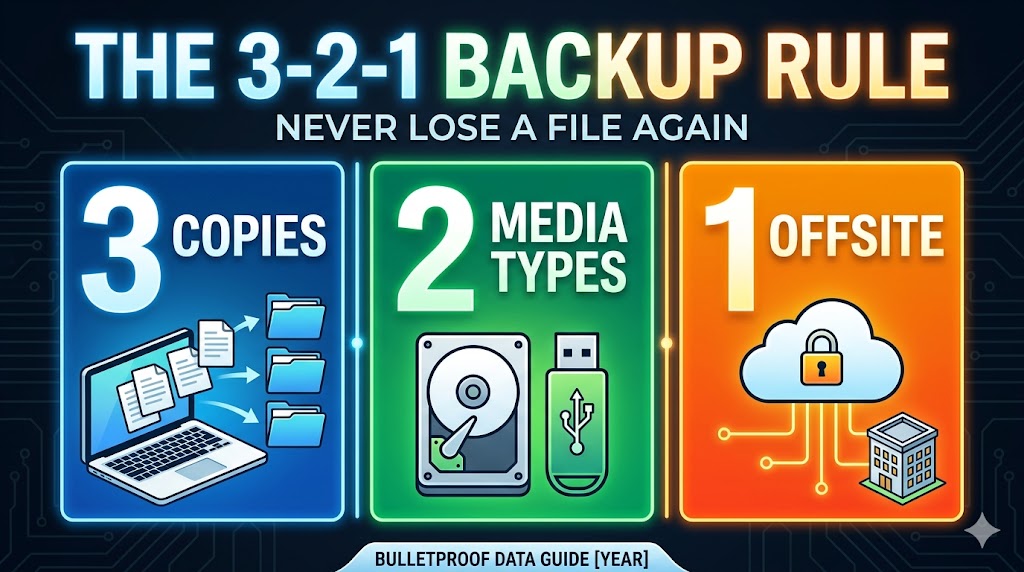
The rule states that you should keep:
- 3 total copies of your data.
- 2 of those copies on different types of media.
- 1 of those copies located offsite.
Let’s break down exactly why each of these pillars is essential to keeping your digital life secure.
1. Maintain Three Total Copies
Having one original file and one backup isn’t enough. If your computer crashes and your only backup drive gets corrupted at the exact same time (which happens more often than you think), you are out of luck.
By maintaining three copies (your primary working copy plus two backups), you mathematically reduce the probability of losing all three simultaneously to near zero.
2. Use Two Different Types of Media
Hardware fails. If you keep your original data on a solid-state drive (SSD) and both of your backups on the exact same brand and model of SSD, a widespread manufacturer defect could potentially wipe out all your copies.
Diversifying your storage media mitigates this risk. Different types of media include:
- The internal drive on your computer.
- An external Hard Disk Drive (HDD) or Solid State Drive (SSD).
- A USB flash drive.
- Network Attached Storage (NAS).
- Optical media (like DVDs or Blu-rays, though these are less common today).
3. Keep One Copy Offsite
If your house or office suffers a fire, flood, or burglary, all the local backups in the world won’t help you if they are sitting on the desk next to your stolen or destroyed laptop.
An offsite backup ensures your data survives local, physical disasters. Historically, this meant taking a physical hard drive to a different physical location (like a safety deposit box or a friend’s house). Today, the cloud makes this step incredibly simple.
How to Implement the 3-2-1 Rule Today
You don’t need expensive enterprise software to set this up. Here is a practical, step-by-step blueprint for everyday users.
Step 1: Identify Your Critical Data
Not everything needs to be backed up. Operating systems and applications can be reinstalled. Focus on what you cannot easily replace:
- Personal photos and videos.
- Financial documents and tax records.
- Ongoing work projects and client files.
- Password manager databases.
Step 2: Set Up Local Backup #1 (The Quick Recovery)
Your first backup should be local. This allows for rapid recovery if you accidentally delete a file or your laptop’s internal drive dies.
- Mac Users: Purchase an external drive and use Apple’s built-in Time Machine. It automatically runs quietly in the background, saving hourly backups.
- Windows Users: Use Windows File History or a third-party tool like Macrium Reflect paired with a reliable external HDD or SSD.
Step 3: Set Up Offsite Backup #2 (The Disaster Recovery)
Your second backup must live outside your home or office. Cloud backup services are the easiest and most secure way to handle this.
- Cloud Storage vs. Cloud Backup: It is vital to know the difference. Services like Google Drive, Dropbox, and OneDrive are syncing services. If you delete a file on your computer, it deletes it in the cloud. Dedicated cloud backup services like Backblaze, IDrive, or Carbonite are designed to mirror your entire hard drive to secure servers and protect against accidental deletions.
Pro Tip: Look for an offsite cloud backup service that offers “versioning.” This means if a file gets infected with a virus today, you can roll back and restore the clean version of the file from yesterday.
Step 4: Automate Everything
The number one reason people lose data is that they forget to run their manual backups. Your 3-2-1 system should require zero daily effort on your part. Set your local backup software to run daily or continuously, and ensure your cloud backup is configured to automatically upload changes whenever you are connected to Wi-Fi.
Common Backup Mistakes to Avoid
Even with the 3-2-1 rule in mind, there are a few traps to watch out for:
- Treating “Syncing” as a Backup: As mentioned above, simply dragging a file into an iCloud or Dropbox folder does not fully protect it from ransomware or accidental permanent deletion.
- Never Testing Your Backups: A backup is only as good as its restore process. Once every few months, try to recover a specific file from both your local external drive and your cloud service to ensure the data is actually there and uncorrupted.
- Leaving External Drives Plugged In 24/7: If you get hit by ransomware, it can jump from your computer to any connected external drives, locking up your backups too. If you use an external drive, consider unplugging it when it isn’t actively backing up.
The Bottom Line
Your digital footprint is incredibly valuable. Implementing the 3-2-1 Backup Rule might take an hour of your weekend to set up, but it provides a lifetime of peace of mind. By keeping three copies of your data, across two different media types, with one stored safely offsite, you are building an impenetrable fortress around your most important files.