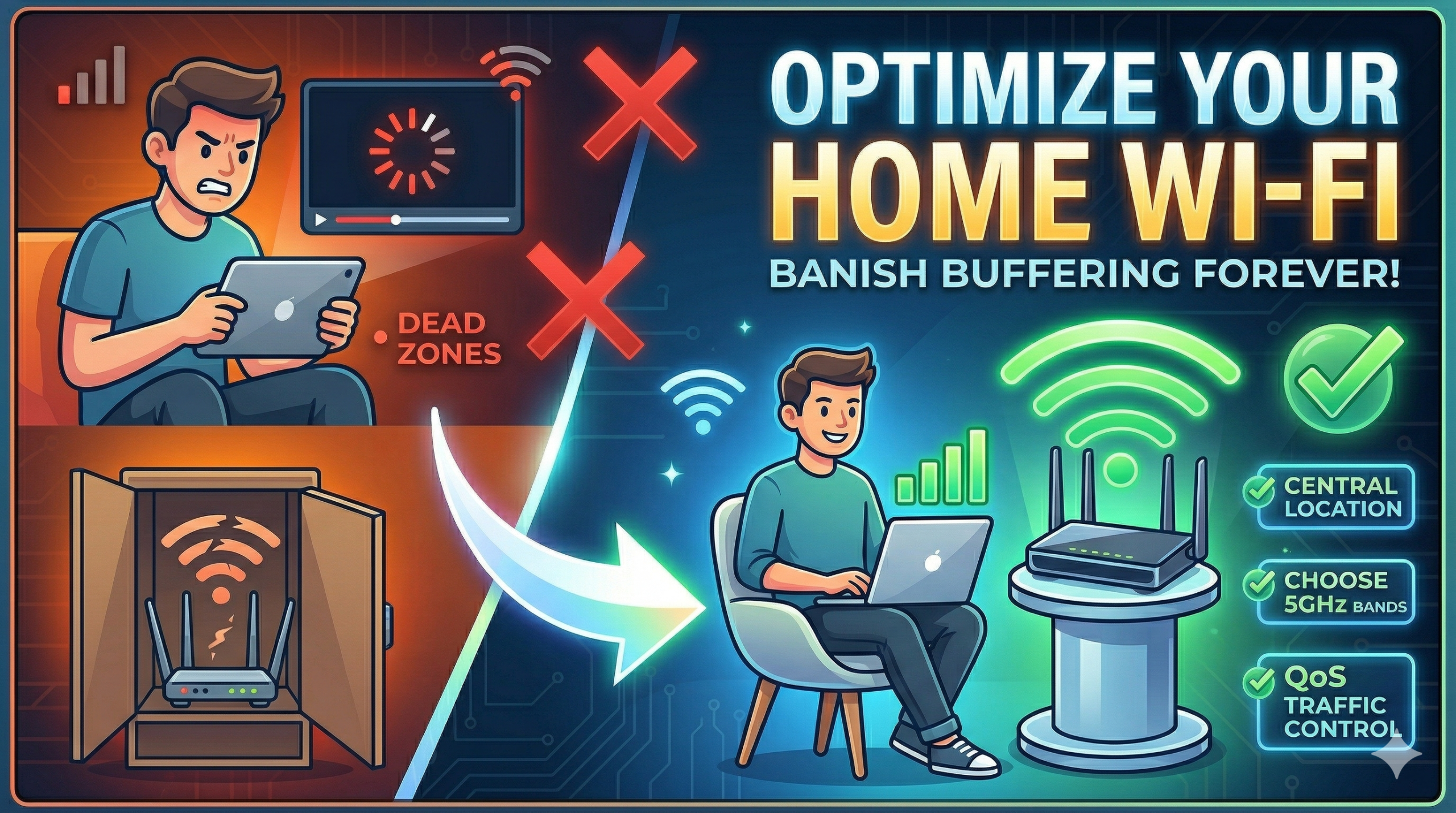
We all know the frustration. You are right in the middle of uploading a heavy video file to YouTube, pitching a client on a crucial Zoom call, or managing your online business dashboard, and suddenly—everything freezes. The dreaded buffering wheel appears.
When your internet grinds to a halt, the immediate reaction is often to blame your Internet Service Provider (ISP) or assume you need to pay for a more expensive data plan. But before you open your wallet, you should look at the little blinking box sitting in the corner of your room.
More often than not, the speed coming into your house is fine; the problem is how that signal is being distributed inside your house. In this guide, we will walk you through five practical ways to optimize your home Wi-Fi network for maximum speed and reliability.
1. Location, Location, Location
The single biggest mistake people make with their Wi-Fi is hiding the router. Because routers aren’t exactly pieces of high-end decor, it is tempting to shove them behind the TV, inside a cabinet, or tuck them away in a basement closet.
Wi-Fi signals are radio waves, and they act a lot like light. If you put a lamp in a closet and shut the door, it won’t light up the living room.
How to fix your router placement:
- Centralize It: Place your router as close to the center of your home (or the area where you use tech the most) as possible. The signal broadcasts in a 360-degree radius, so putting it against an exterior wall sends half your Wi-Fi into the yard.
- Elevate It: Routers tend to broadcast signals slightly downward. Placing your router on a tall bookshelf or mounting it high on a wall will give you better coverage than leaving it on the floor.
- Avoid Obstacles: Keep the router away from thick brick walls, metal filing cabinets, and appliances like microwaves or cordless phones, which can severely scramble the signal.
2. Master the 2.4GHz vs. 5GHz Divide
Modern routers are “dual-band,” meaning they broadcast two distinct Wi-Fi networks simultaneously: 2.4GHz and 5GHz. Understanding the difference between the two is a game-changer for your daily speeds.
- 2.4GHz (The Marathon Runner): This band is slower, but it is excellent at punching through solid walls and traveling long distances. Use this for smart home devices (like smart plugs or thermostats) and devices located in far-off bedrooms.
- 5GHz (The Sprinter): This band is incredibly fast, but it has a very short range and struggles to pass through thick walls. Use this for your primary laptop, smart TV, or gaming console, provided they are in the same room or close to the router.
Pro Tip: Log into your router’s admin panel and ensure the two bands have slightly different names (e.g., “HomeNetwork_2.4” and “HomeNetwork_5G”). This allows you to manually force your high-priority devices onto the faster 5GHz track.
3. Change Your Wi-Fi Channel
If you live in a dense apartment building or a closely packed neighborhood, your Wi-Fi might be stuck in a traffic jam.
Every router broadcasts on a specific “channel.” If your router and your five closest neighbors’ routers are all trying to blast data over Channel 6 at the same time, the interference will cause everyone’s connection to drop.
How to find a clear lane:
- Download a free Wi-Fi analyzer app on your smartphone (like WiFi Analyzer for Android or Airport Utility for iOS).
- Walk around your workspace and see which channels are highly congested.
- Log into your router’s settings via your web browser.
- Locate the “Wireless Settings” and change your channel to one that is less crowded (Channels 1, 6, and 11 are generally the best options for the 2.4GHz band as they do not overlap).
4. Prioritize Your Traffic (QoS)
If you have a household where someone is streaming 4K Netflix, someone else is downloading a massive game update, and you are trying to conduct a smooth remote job interview, your router might struggle to keep up.
Many modern routers feature a setting called Quality of Service (QoS). QoS allows you to tell the router which devices or applications are the most important. By logging into your router’s admin panel, you can prioritize your work laptop or your video conferencing software, ensuring that your connection stays flawless even if the rest of the house is hogging bandwidth.
5. Know When It’s Time to Upgrade to Mesh
If you have optimized your placement, switched your channels, and split your bands, but you still have dead zones in your home, it might be time to ditch the traditional single router.
If your home is larger than 2,000 square feet, has multiple stories, or features lots of dense brick walls, consider upgrading to a Mesh Wi-Fi System (like Google Nest Wifi, Eero, or Orbi).
Instead of relying on one super-powerful router to scream across the whole house, a mesh system uses a main router connected to several smaller “nodes” placed strategically around your home. These nodes talk to each other to blanket your entire property in a seamless, unified, high-speed network. It is the ultimate solution for keeping a rock-solid connection from the basement office to the attic bedroom.
The Bottom Line
You don’t always need to pay your provider for a faster tier of internet. By rescuing your router from the closet, managing your frequency bands, and occasionally updating your hardware, you can instantly eliminate dead zones and ensure your uploads, downloads, and daily tech tasks run without a single hiccup.
Leave a Reply