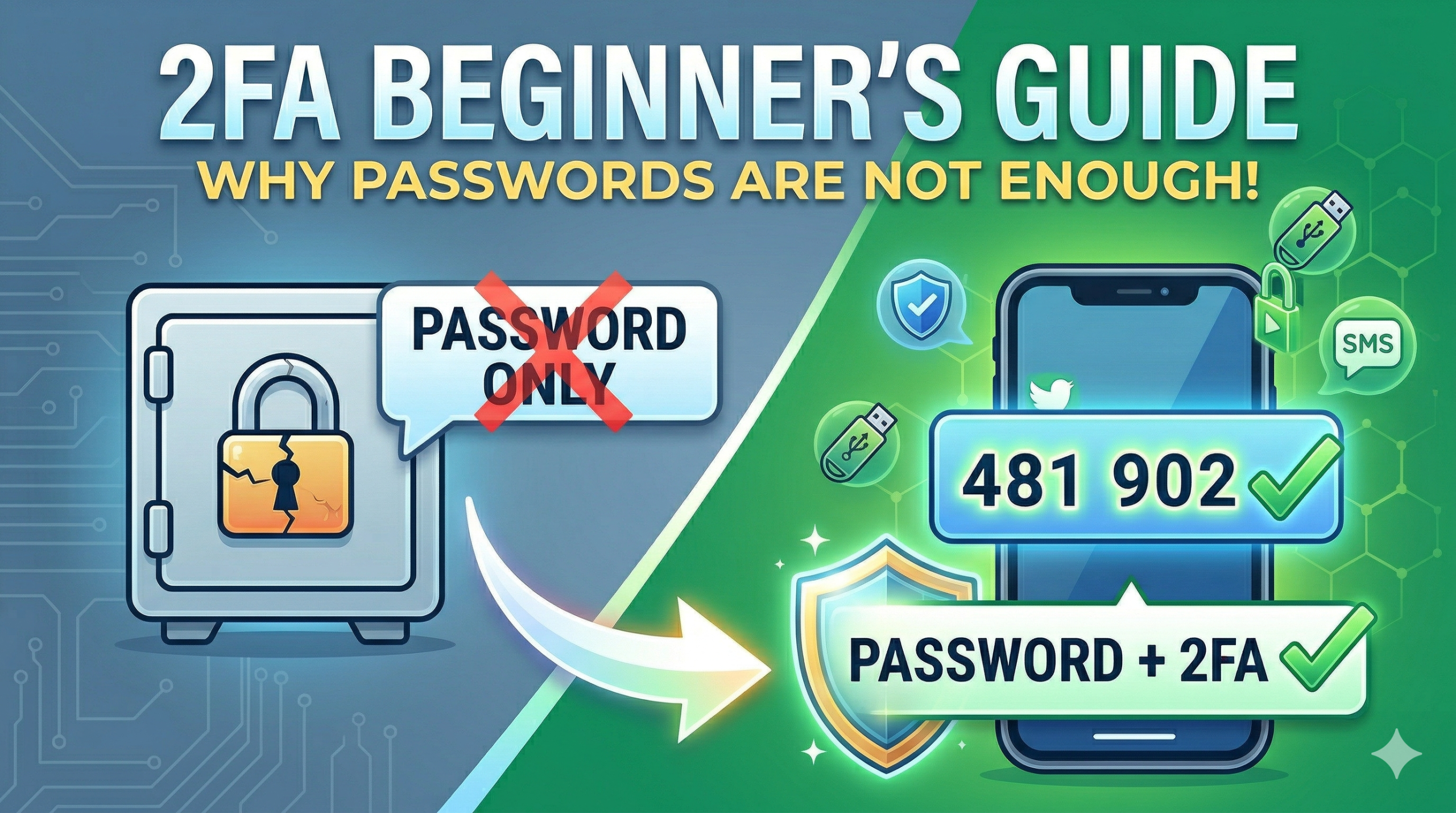
For decades, the standard advice for online security has been simple: create a strong, complex password and never share it with anyone. But in today’s digital landscape, relying solely on a password is like putting a heavy-duty padlock on a screen door.
Data breaches are a daily occurrence. Hackers constantly deploy automated bots to test billions of stolen passwords across every major website in seconds. If your password is ever exposed in a breach—even if it’s T!g3r$tr!p3s99—your account is vulnerable.
This is where Two-Factor Authentication (2FA) steps in to save the day. It is widely considered the single most effective action you can take to protect your digital life. In this guide, we will explain exactly what 2FA is, how it works, and which methods offer the best protection for your accounts.
What is Two-Factor Authentication?
At its core, authentication is about proving you are who you say you are. Security experts generally categorize this proof into three distinct “factors”:
- Something you know: A password, a PIN, or the answer to a security question.
- Something you have: Your smartphone, an authenticator app, or a physical security key.
- Something you are: A biometric trait, like your fingerprint or a FaceID scan.
Most websites traditionally only ask for one factor (your password). Two-Factor Authentication (2FA) requires you to provide two different factors from the list above before granting access to your account.
Usually, this means entering your password (something you know) followed by a temporary code sent to your phone (something you have). Even if a hacker across the globe steals your password, they cannot log into your account because they do not have your physical phone in their hands.
The 3 Main Types of 2FA (Ranked by Security)
Not all 2FA methods are created equal. While any 2FA is infinitely better than no 2FA, it is important to understand the pros and cons of the different options available to you.
1. SMS / Text Message Codes (The Most Convenient)
When you log in, the service sends a 6-digit code via text message to your registered phone number. You enter the code, and you are in.
- The Pros: It is incredibly easy to set up and requires no extra apps. Almost everyone knows how to use it.
- The Cons: It is the least secure form of 2FA. Cybercriminals can execute “SIM swapping” attacks, tricking your mobile carrier into transferring your phone number to a SIM card they control. If they succeed, they get all your text messages—including your 2FA codes.
- The Verdict: Use SMS 2FA only if the website offers absolutely no other option.
2. Authenticator Apps (The Sweet Spot)
Instead of relying on your cellular network, you download a dedicated app (like Google Authenticator, Authy, or Microsoft Authenticator) to your smartphone. When you set up 2FA on a website, it gives you a QR code to scan with the app. From then on, the app generates a new, randomized 6-digit code every 30 seconds.
- The Pros: Highly secure. The codes are generated locally on your device, meaning they cannot be intercepted in transit like a text message. They also work even if your phone doesn’t have a cellular or Wi-Fi connection.
- The Cons: Requires a slightly more involved initial setup. If you lose your phone and haven’t backed up your authenticator app, recovering your accounts can be a headache.
- The Verdict: This is the recommended standard for almost all users. It perfectly balances high security with daily convenience.
3. Hardware Security Keys (The Gold Standard)
A hardware key (like a YubiKey or Google Titan) is a small physical device that fits on your keychain and plugs into your computer’s USB port or connects to your phone via NFC or Bluetooth. Instead of typing in a code, you simply tap the key when prompted to log in.
- The Pros: It is practically unhackable. It provides ultimate protection against sophisticated phishing attacks because the key physically verifies the website’s cryptographic signature before authenticating.
- The Cons: You have to purchase the key (usually $25 to $50) and carry it with you. If you lose it, you are locked out unless you have a backup key or backup codes.
- The Verdict: Ideal for securing high-value targets: primary email addresses, password managers, banking apps, and cryptocurrency wallets.
Where Should You Enable 2FA?
Eventually, you should enable 2FA on every service that offers it. However, if you are just starting out, prioritize the “keys to the kingdom”:
- Your Primary Email Account: (Gmail, Outlook, Apple Mail). If a hacker gets into your email, they can reset the passwords for almost every other account you own.
- Your Financial Accounts: Banks, investment portfolios, PayPal, and crypto exchanges.
- Your Password Manager: If you use a tool like Bitwarden or 1Password, 2FA is an absolute must to protect your master vault.
- Your Social Media: Protect yourself from identity theft, reputational damage, and being locked out of your own network.
The Bottom Line
Adding an extra step to your login process might feel like a minor inconvenience at first, but the peace of mind is immeasurable. The next time a major website announces a data breach, you won’t need to panic.
Take 15 minutes today to download an authenticator app and enable 2FA on your most critical accounts. It is the cheapest, most effective insurance policy your digital life can have.
Leave a Reply