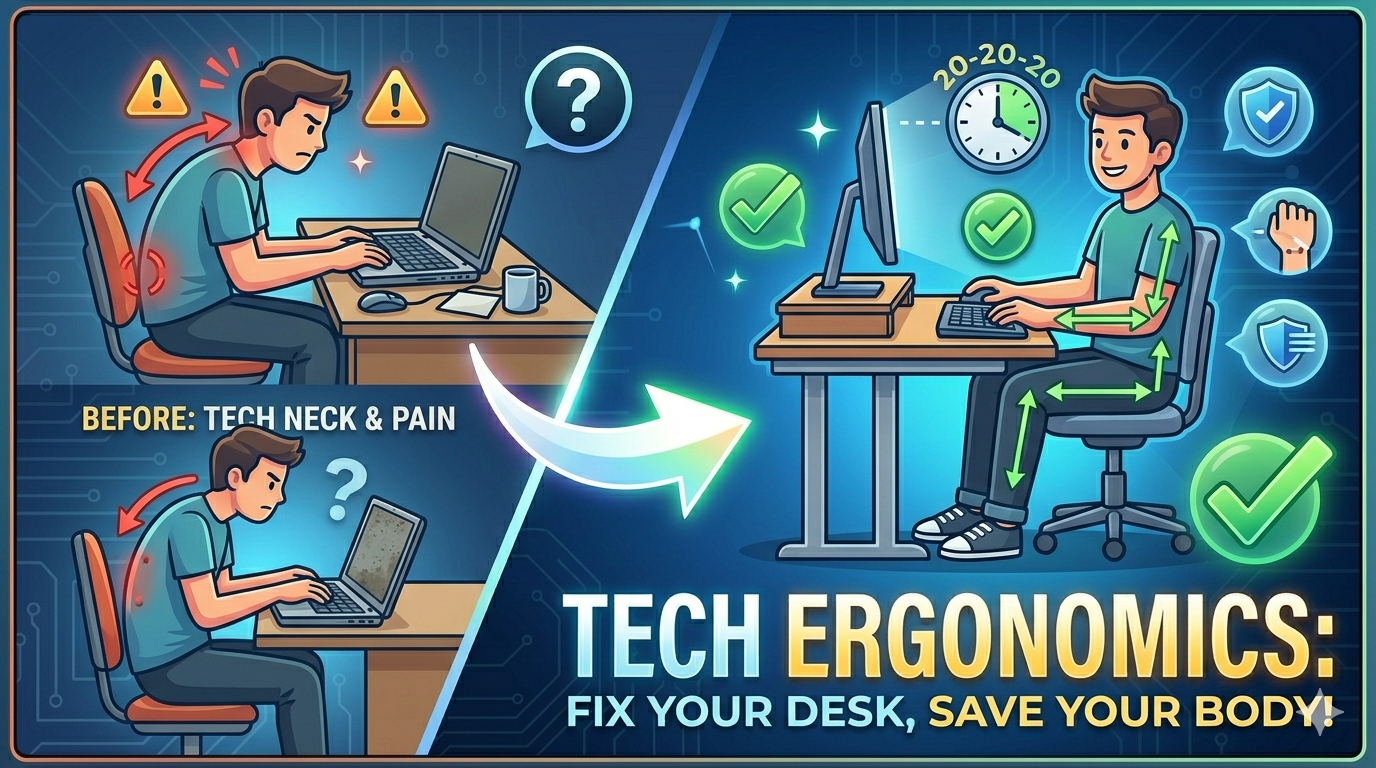
If you work at a computer, you likely know the feeling: the stiff neck at 3:00 PM, the dull ache in your lower back, or the burning sensation in your eyes after a long day of screen time.
Often, we accept these physical complaints as the inevitable cost of doing business in the digital age. But pain is not a required feature of your job. Usually, it is simply your body loudly complaining about your workspace geometry.
Ergonomics is the science of designing the workspace to fit the user, rather than forcing the user to contort themselves to fit the workspace. By making a few zero-cost adjustments to your chair, monitor, and peripherals, you can drastically reduce fatigue and prevent long-term repetitive strain injuries.
In this guide, we will walk you through the ultimate ergonomic desk setup, from the floor to your line of sight.
1. The Foundation: Chair Alignment and Posture
Before you touch your keyboard or look at your screen, you need to fix how you are sitting. A high-end ergonomic chair is great, but even a basic office chair can be optimized using the “Rule of 90 Degrees.”
The Rule of 90 Degrees
When you sit at your desk, your body should form a series of right angles:
- Elbows: Your arms should rest comfortably at your sides, with your elbows bent at a 90 to 100-degree angle when your hands are on the keyboard.
- Hips and Knees: Your hips should be pushed back into the chair, and your knees should be bent at roughly 90 degrees, sitting at or slightly below the level of your hips.
- Ankles: Your feet should be planted flat on the floor.
Pro Tip: If your desk is too high and you have to raise your chair to reach the keyboard, your feet might dangle. Do not leave them hanging! Use a footrest, a sturdy box, or a stack of heavy books to support your feet and maintain that 90-degree knee angle.
Lumbar Support
The human spine has a natural “S” curve. If your chair does not support the inward curve of your lower back (the lumbar region), you will naturally slump forward into a “C” shape. If your chair lacks built-in support, place a rolled-up towel or a dedicated lumbar cushion just above your beltline.
2. Monitor Height: Saving Your Neck
“Tech Neck” is an epidemic. If you are constantly looking down at a laptop screen or up at a mounted TV, you are putting massive strain on your cervical spine. For every inch your head tilts forward, the weight it places on your neck doubles.
The Eye-Level Rule
Your primary monitor should be positioned directly in front of you, about one arm’s length away.
The most crucial detail is the height: The top edge of your monitor should be exactly at or slightly below your eye level. When you look at the center of the screen, your eyes should be looking slightly downward (about 15 to 30 degrees) without you having to tilt your head or neck.
- For Laptop Users: Using a laptop flat on a desk for eight hours a day is an ergonomic nightmare. Invest in an inexpensive laptop stand to raise the screen to eye level, and plug in a separate external keyboard and mouse.
- For Dual Monitors: If you use two monitors equally, center them so the bezel where they meet is directly in front of your nose. If you have one primary monitor and one secondary, put the primary directly in front of you and the secondary immediately to the side, angled inward.
3. Keyboard and Mouse: Protecting Your Wrists
Repetitive Strain Injuries (RSIs) like Carpal Tunnel Syndrome are often caused by poor hand positioning over long periods.
Neutral Wrists
When typing or using your mouse, your wrists should be in a “neutral” position. This means they should be straight, not bent up, down, or aggressively outward.
- Ditch the Kickstands: Those little legs on the back of your keyboard? Fold them away. Angling your keyboard upward forces you to bend your wrists back (extension), which strains your tendons. Your keyboard should be flat or even angled slightly downward away from you.
- Hover, Don’t Rest: Wrist rests can be comfortable between typing sessions, but you should not rest your wrists heavily on them while typing. Your hands should float slightly above the keys.
- Keep the Mouse Close: Your mouse should be immediately next to your keyboard. If you have to overreach your arm to grab the mouse, you are putting unnecessary strain on your shoulder and rotator cuff.
4. Lighting and Eye Strain
Digital Eye Strain (Computer Vision Syndrome) causes dry eyes, blurred vision, and headaches. Protecting your eyes requires managing both your screen and your environment.
The 20-20-20 Rule
Staring at a fixed distance for hours tires out the muscles in your eyes. To give them a break, follow the 20-20-20 rule: Every 20 minutes, look at something 20 feet away for at least 20 seconds.
Battle the Blue Light
Computer screens emit blue light, which can cause eye fatigue and disrupt your sleep cycle if you work late.
- Software Solutions: Enable built-in blue light filters on your devices. Turn on “Night Light” on Windows, “Night Shift” on Mac, or download a free app like f.lux. These tools gradually warm up the color temperature of your screen as the sun sets.
- Manage Glare: Ensure your monitor is not positioned directly in front of a bright window (which causes silhouetting) or directly opposite a window (which causes glare on the screen). Position your desk perpendicular to natural light sources.
The Bottom Line
You don’t need to spend thousands of dollars on a futuristic standing desk and a spaceship-style chair to work safely. Ergonomics is mostly about awareness and geometry. By raising your screen, flattening your keyboard, and taking a few seconds to adjust your chair height, you are investing directly in your long-term health, focus, and productivity.
Leave a Reply